Setting up assets in iiSU
Box Art, Backgrounds, and more! Learn how to customize your iiSU library with automatic scrapers and custom assets.
Nothing beats the feeling of scrolling through a beautiful, well organized game library. With iiSU, we want to give you the flexibility of being able to customize it to be just perfect for you, while also keeping it effortless to set up when you don't have much time to spare. Currently, there are three methods for getting all your assets in iiSU:
- Basic RetroAchievements Scraper
- IGDB scraper, automatically finding assets for you
- Adding your own custom assets via your File Manager
Note: This list is still expanding! As we progress in development, more (and easier!) methods will become available. Eventually, with iiSU DB, you'll barely have to lift a finger, as we'll grab assets provided and made fit for iiSU by our community.
What this guide will cover
In this guide, we will go over how you can set up and manage the automatic asset scraper for iiSU, as well as adding and managing your own assets for games, applications, and platforms (consoles).
Basic RetroAchievements Scraper
While iiSU lets you use IGDB to get assets for games and has the ability add your own assets, you can also get some basic assets (Box Arts and Title Cards) using our RetroAchievements scraper. For this, you simply have to do the following:
- Sign up or Login to RetroAchievements.
- Head to the RetroAchievements settings, which you can find at https://retroachievements.org/settings
- Under Authentication, create a Web API Key. Copy this.
- Open iiSU and head to the Achievements Menu (Trophy Icon).
- Type in your RetroAchievements username, and paste the Web API Key into the Web API Key field.
- Hit "Sign in", and iiSU should start fetching basic assets through RetroAchievements!
Fetching assets automatically using IGDB
Currently, iiSU connects to the IGDB online database to find and add game assets, such as box art and backgrounds. To make this work for you, you need to have a Twitch account, and create an application in the Twitch Developer Console. This section of the guide will cover how to do that.
What is IGDB?
IGDB is an online database for videogames operated by Twitch, containing a plethora of assets for many modern and retro-games alike. While they may not always perfectly fit, it's currently the best approach at the early stage of iiSU's development for getting all your game assets quickly.
Part 1: Get your IGDB Client ID & Secret
Let's get the codes you need from the Twitch Developer Console to access IGDB. If you don't already have a Twitch account, create one on twitch.tv/signup.
- First, head to dev.twitch.tv/console/apps
- Next, you'll need to register an application. Click + Register Your Application in the top right.
- Fill out the following details: Name: Any name you want (e.g. "My iiSU Scraper"). OAuth Redirect URLs: Type "https://localhost". Client Type: Set this to Confidential.
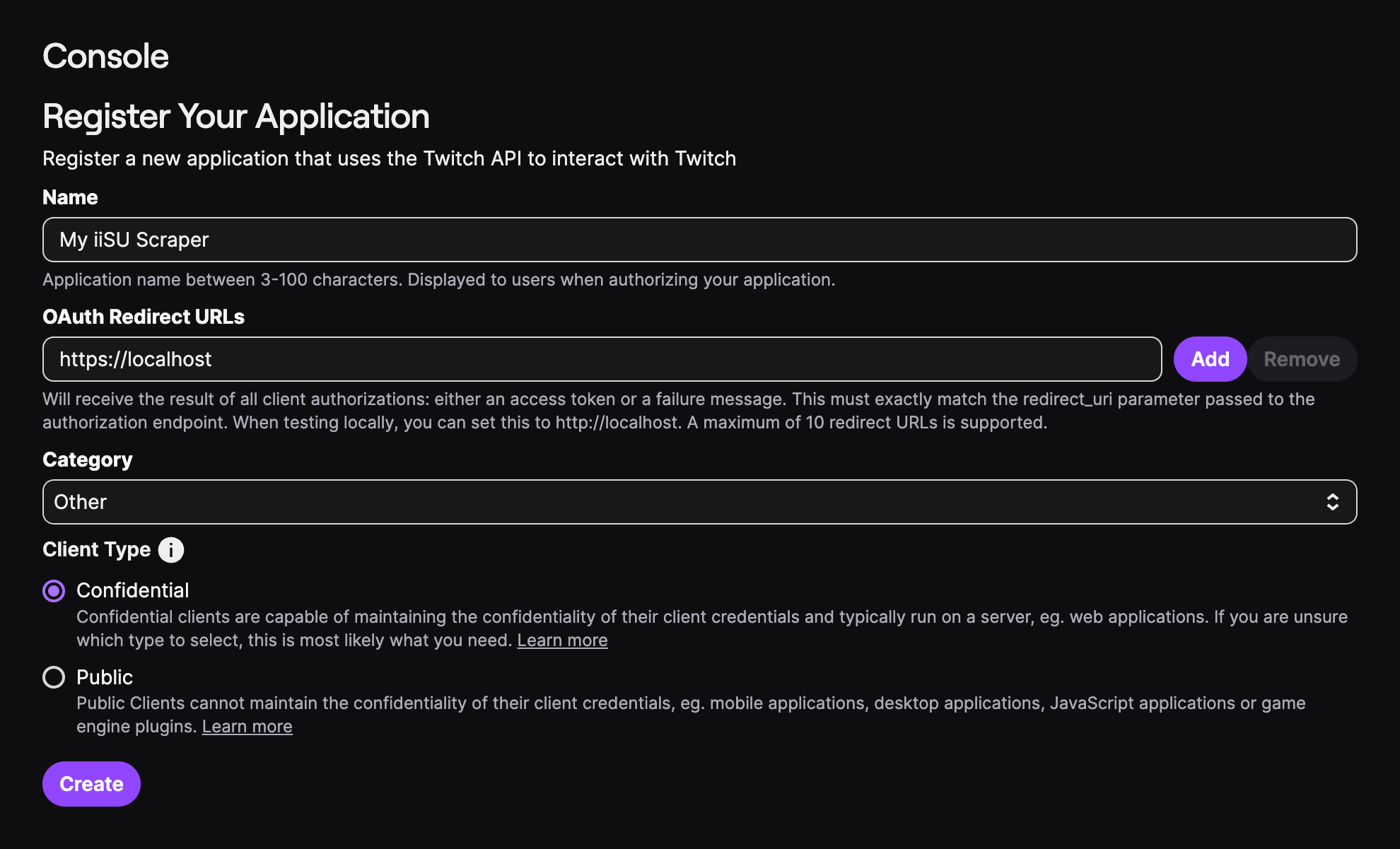 Twitch Developer Console - Register Application
- Create the application.
- Back in Developer Applications, find your app and click Manage. To get to this menu, click here: dev.twitch.tv/console/apps
 Developer Applications Console
- Next, create a secret with the New Secret (➊) button. Copy the Client Secret (➋) displayed above immediately. Once you leave the page, it won't be shown again. If you don't copy it now, you'll have to regenerate the secret later.
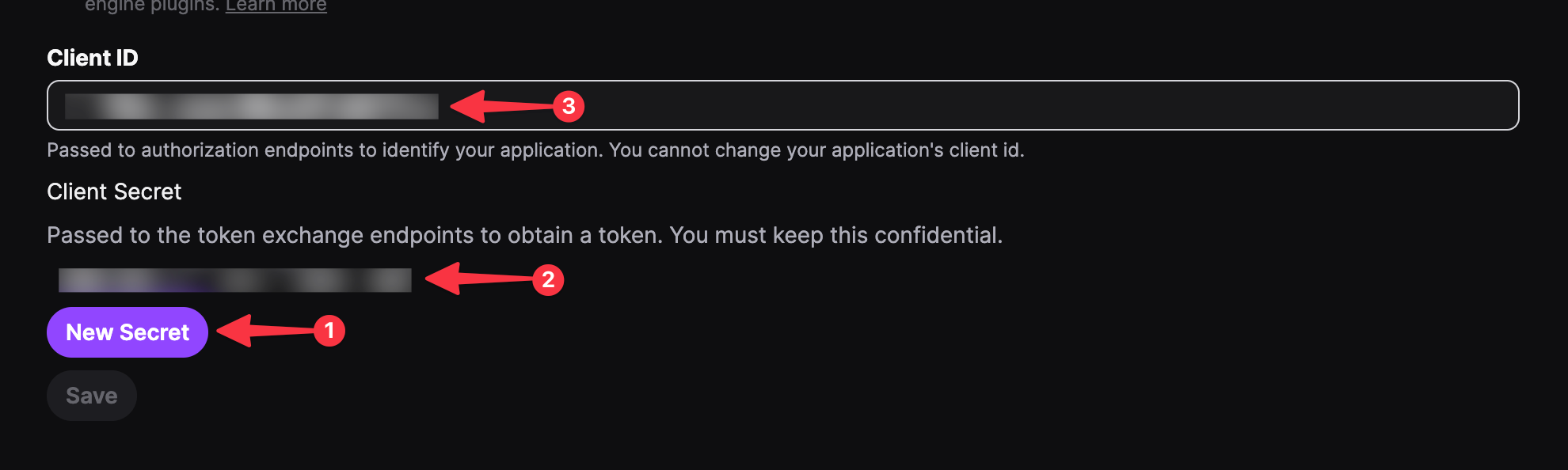 Client ID and Secret Configuration
- Also copy the Client ID (➌) located above. You'll need both to set up the IGDB scraper in iiSU.
This covers the section of getting your credentials for accessing IGDB.
Part 2: Connecting iiSU
Now that you have your keys, you'll have to provide them to iiSU so we can start fetching your assets from IGDB. For this:
- Open iiSU.
- Tap the user picture (top right) to open the Actions Menu.
- Go to iiSU Settings -> Configure IGDB Credentials
- Tap Edit Client ID (➊) and paste the Client ID from earlier.
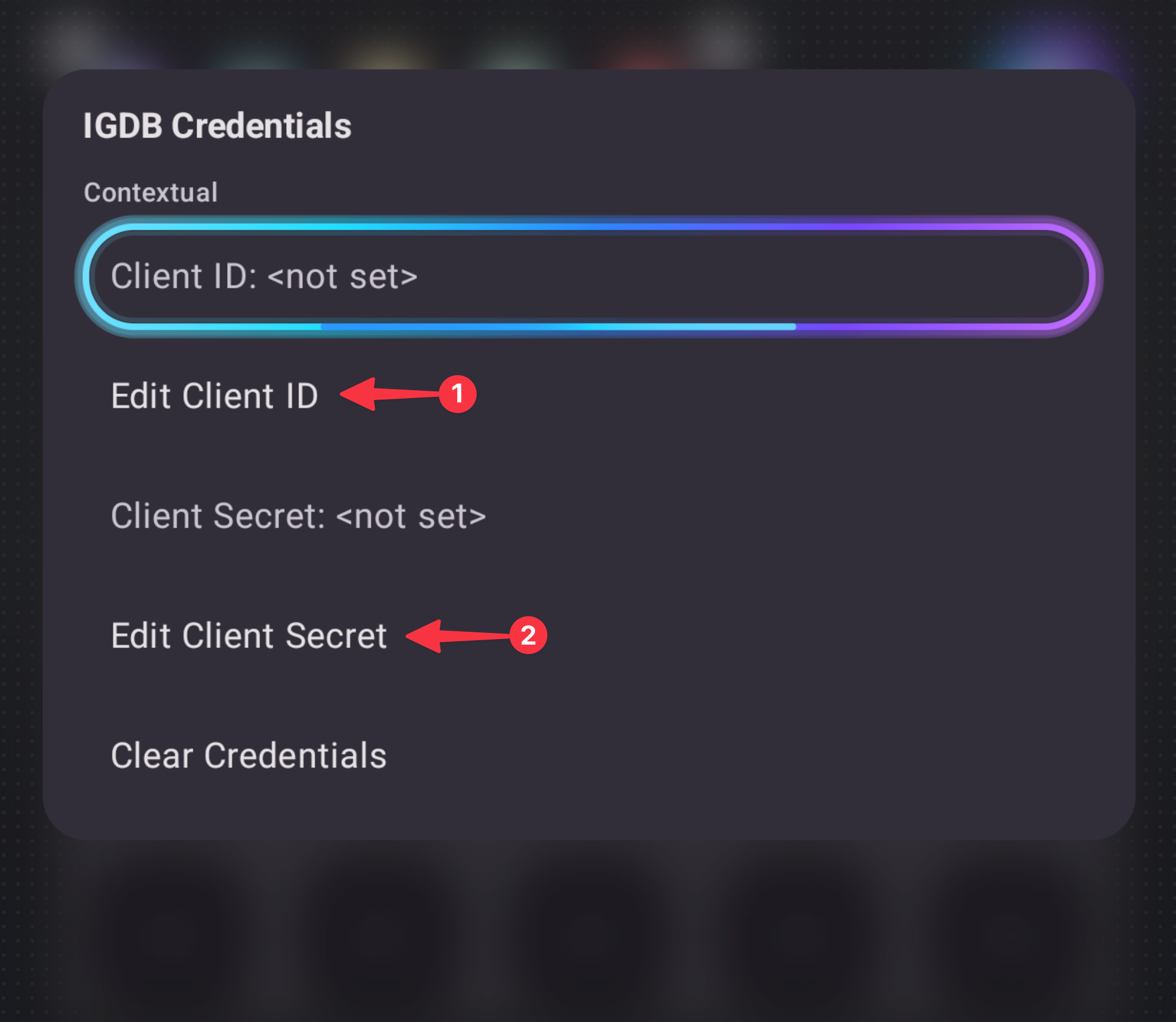 Configure IGDB Credentials in iiSU
- Tap Edit Client Secret (➋) and paste your Client Secret from earlier.
- Exit the menu.
iiSU should now have access to IGDB, so we can start getting your assets.
Part 3: Fetching the assets
Time for the fun part! Let's populate your games with pics and box art. You can fetch assets for your whole library, a single console, or just one specific game.
Getting assets for your entire library, or a certain console
To scan for assets, do the following:
- Navigate to the Games tab (controller icon).
- (Optional) If you only want to update one specific system, highlight that console now.
- Open the Menu and locate the two Get/Update IGDB Data options. Choose Get/Update IGDB Data for all consoles to update everything (Recommended for first setup). Choose Get/Update IGDB Data for [Selected Console Name] to update only the current selection.
- When prompted for a matching method: Recommended: Auto-select best matches. Choose Show IGDB Match list only if you want to manually approve each match (slower).
- For your first time getting assets, we recommend to select Download/Update all games. Then, wait for the process to finish. With a larger library, it might take a while.
Important: Please keep iiSU open and your device screen on while the download is in progress to ensure nothing gets interrupted.
In the future, when you add more games and consoles, ideally choose Skip games with existing media. This saves time by only downloading art for your new files!
- Once the process is finished, you'll be sent back to the start of the IGDB flow. Simply back out or press cancel.
Congrats – Your library should now be populated! 🎉
Missing some artwork? Check the next section to learn how to choose assets for individual games.
Getting assets for a single game
There are two methods on acquiring assets for games in iiSU. You can either automatically find the asset, or perform a custom search by typing in the title of the game yourself. To scrape assets for a specific game:
- Locate the game you want to scrape, and select it.
- Open the menu and locate Get/Update (Custom) IGDB Data for ROM. Choose Get/Update IGDB Data for ROM (➊) to fetch the selected games' assets (Recommended). Unless a match is exact, it'll ask you to pick the correct game to pull assets for. Select the correct game in this list. (Game missing? Check Tips & Tricks, #1). Alternatively, choose Get/Update Custom IGDB Data for ROM (➋) to create a custom query for data. This comes in handy when the first method fails.
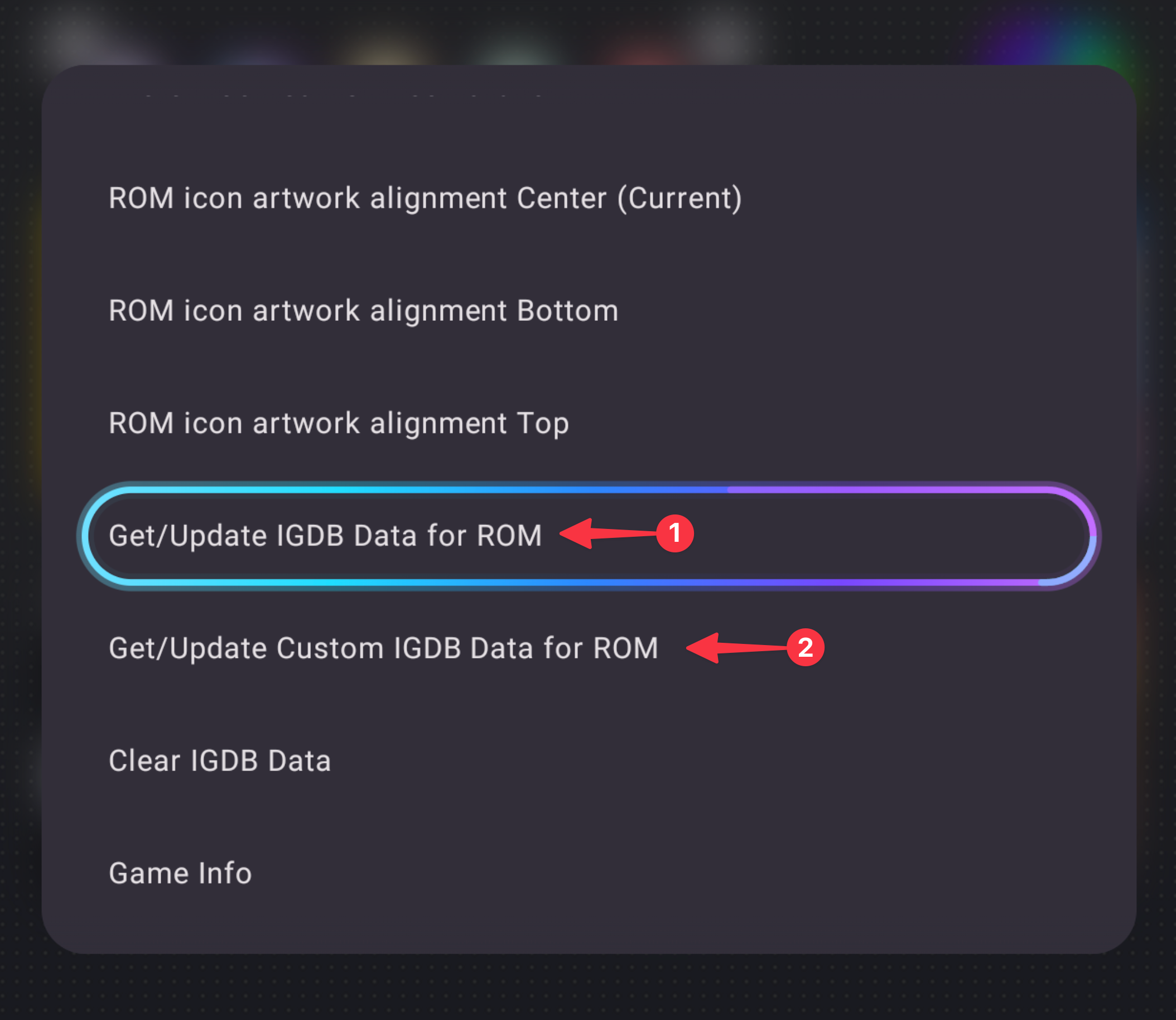 IGDB Data Options for Individual ROMs
- (If you chose Get/Update Custom IGDB Data): Type the name of the game you're trying to get assets for. It will pre-fill the field with the ROMs name. In the next menu, it'll show you a list of assets to choose.
- Wait for the process to finish, then exit out and return to the menu. It should now show the games assets.
Adding custom assets
Customization is an important element in how we're building iiSU. If you have a specific look in mind, or in case IGDB doesn't feature a game you have, you can add images manually. For this step, you will need to use a File Manager on your Android device (or connect it to a PC) to place your images in these folders. By the way: Check Tips & Tricks #2 for another approach on this!
Why can't I manage custom assets from inside iiSU yet?
Right now, we're still working on making this happen. For the time being, you have to set up these things outside of iiSU or rely on our IGDB scraper. We apologize for the inconvenience!
For creating custom assets, please refer to our asset guide here: iisu.network/asset-guide. Oh, and also, you can already find heaps of custom content made by our community on our Discord Server: discord.gg/iisu!
Adding custom assets to games (ROMs) and apps
To add custom assets, you will need to navigate to the specific folder for that game on your device's internal storage. You can find them in the following location:
ROMs: Android/media/com.iiSULauncher/iiSULauncher/assets/media/roms/consoles/<console_name>/<rom_name>/
Applications: Android/media/com.iiSULauncher/iiSULauncher/assets/media/android/apps/<app._package._name>
The filepath may differ, depending on how the Android device created the external media directory, especially when using a rooted device.
Note: iiSU will usually create these folders for you if they don't exist already. In case they're missing, try re-launching iiSU.
Getting assets ready
When adding custom assets to iiSU, make sure that you're using either PNG or JPG file formats. Currently, you can customize the following assets:
- icon – The main game image (or box art). On dual-screen setups, this is displayed on the bottom screen. Recommended: Aspect Ratio 1:1, Resolution 1024x1024
- title – The games logo or title image. On dual-screen setups, this is displayed on the top screen. Recommended: Aspect Ratio any, Resolution: 1080p
- hero_Y – The background image of a game. Recommended: Aspect Ratio 16:9, Resolution 3840x2160
- slide_Y – Images used for the gallery.
The above is also the file naming convention. For each ROM or application, make sure the filenames match exactly (Y must be a number). For example, this could be icon.png or hero_1.jpg.
Note: As every game and app has its own folder, the names of the assets must not have the game/app in its file name.
What does Y mean?
Y is used as an index. This means: You aren't limited to just one background and slide! For hero and slide images, you can add multiple files by numbering them (e.g., hero_1.png, hero_2.png, hero_3.png), and iiSU will then automatically cycle through them in order.
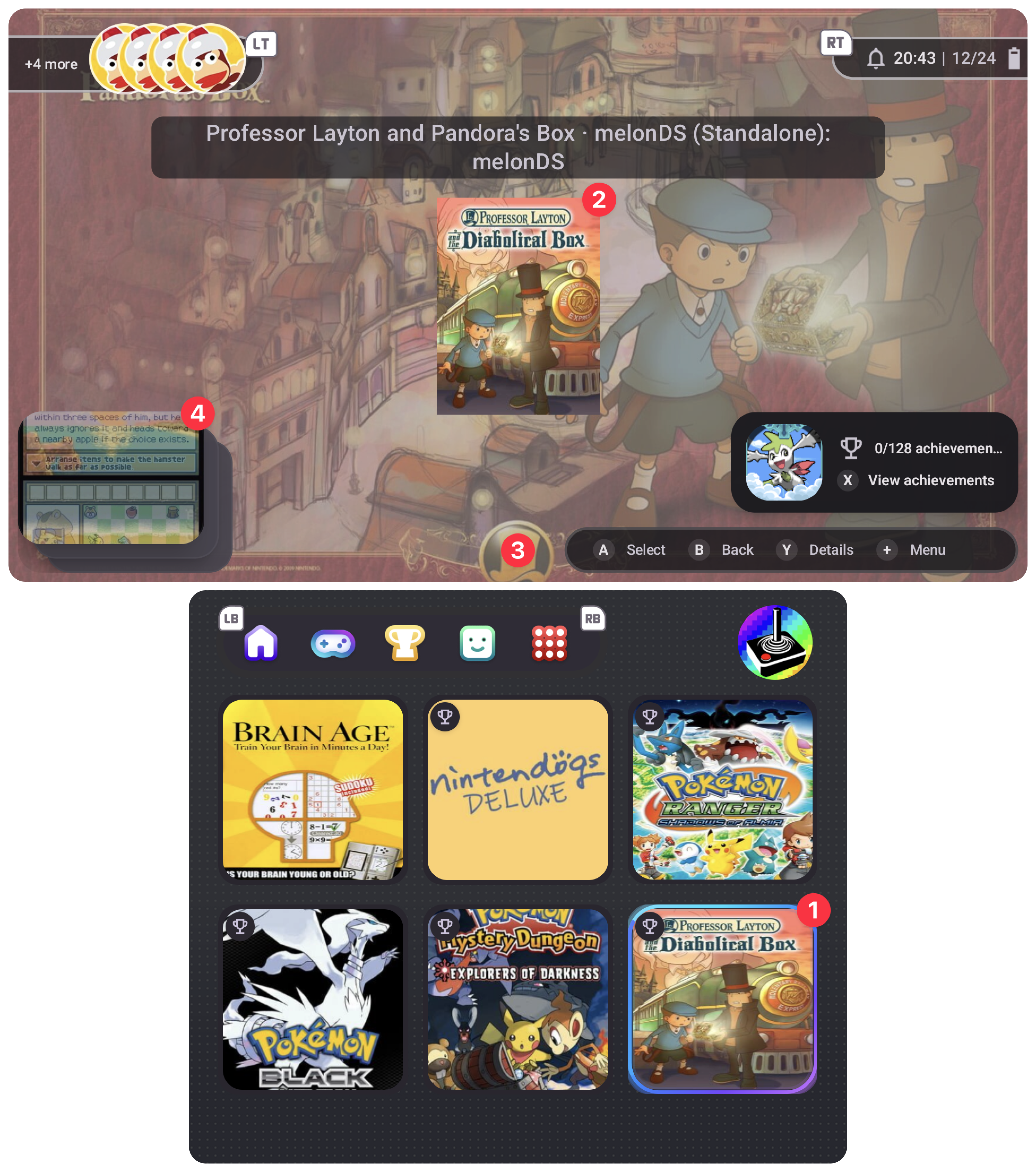 Example of custom assets in iiSU
Example Configuration
Let's say you want to add a custom box art for the game Pokémon Black to iiSU. For this, you'll need to do the following:
- Get a .png or .jpg of your desired boxart. Change the name of the image to "icon".
- Locate the asset folder for Pokémon Black on your device. It should be here: iiSULauncher/assets/media/roms/consoles/nds/'Pokemon Black'/
- Copy the icon.png or icon.jpg into the folder.
Done! If you exit and re-enter the Nintendo DS ROM folder, it should appear there now. You can apply the same principle to the other assets described.
Adding custom assets to platforms (Consoles)
When changing assets for platforms, you will usually find the icons and backgrounds in the following location:
Android/media/com.iiSULauncher/iiSULauncher/assets/platforms
The filepath may differ, depending on how the Android device created the external media directory, especially when using a rooted device.
Note: iiSU will usually create these folders for you when adding a platform / console.
For consoles, there are the following assets:
- platformX_icon – The image for the platform shown in the menu. On dual-screen setups, this is displayed at the bottom screen.
- platformX_title – The logo of the platform. On dual-screen setups, this is displayed on the top screen.
- platformX_list – The background of a list item when using the "List mode" icon layout for a platform.
- platformX__list__selected – The background of a selected list item when using the "List mode" icon layout for a platform.
When placing an asset in the platforms folder, replace "platformX" with the platform for which the asset is for.
Other custom theming
Want to change the global look and feel of iiSU? You can create custom themes with their own unique backgrounds and video loops. We're still working on this!
Backgrounds and video backgrounds for themes (each folder inside Themes is a theme) are usually stored in:
Android/media/com.iisulauncher/iiSULauncher/assets/Themes/
For themes you can provide (in a folder inside Themes):
- Detail Screen background: detail_background.png/detail_background_dark.png
- Navigation Screen background: home_background.png/home_background_dark.png
- Animated Detail Screen background: detail_background.mp4/detail_background_dark.mp4
- Animated Navigation Screen background: home_background.mp4/home_background_dark.mp4
Tips & Tricks
#1: Sometimes, there are issues finding assets for games, especially with longer titles when the game lacks a complete title. Here, head to IGDB.com and use the search field in the top right to locate the game on IGDB, then type in the full title in the custom search feature described above.
#2: A great way to manage your files on your handheld devices is using Syncthing or rsync. Right now, you can set the iiSU Launcher folder, located in Android/media/com.iisulauncher/iiSULauncher/ to sync with a folder on your computer in the same Wi-Fi network, letting you manage these assets there. If you know how to use Syncthing or rsync, consider setting this up. This also works great for ROMs and savegames!
As of December 24, 2025 | iiSU Alpha v0.0.4 | Guide out of date? Notify us!
Author: Alyx Buckmann